Scavenger — Support
Scavenger turns grocery runs and errands into something you actually finish, together. Start a Party with the people you shop for — a partner, a roommate, your whole household — and everyone sees the same live list, from anywhere, always in sync.
Instead of one long list, Scavenger organizes what you need by trip: a Hunt is a shopping trip to one store, and your Base Camp is where all your stores and their Hunts live at a glance. Add items by typing, talking, or snapping a photo of a list — Scout, Scavenger's built-in AI, sorts everything into categories automatically. Finish a Hunt and it moves to your Trail, a running history of what you've gathered.
Need help, or just curious how something works? You're in the right place.
Need help with Scavenger or want to send a quick note?
Have a question or found something that doesn't seem right, and don't have the app handy? Send us a note — no reply guaranteed, but every message gets read.
Common questions
Is Scavenger available in the App Store?
Is Scavenger available on Google Play?
How do I invite family members to my Party?
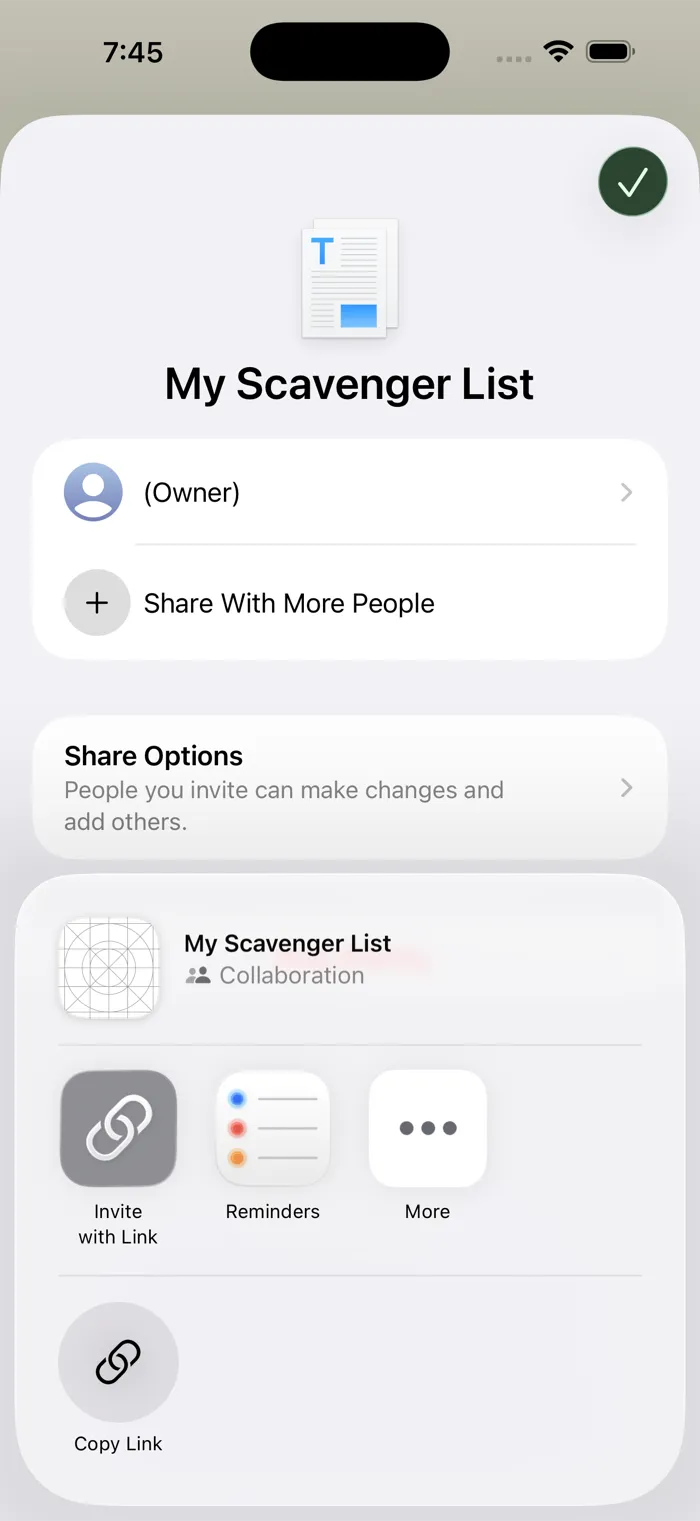
From the Settings tab, tap your Party name at the top, then choose Invite to Your Party. This opens your device's native sharing sheet, where you can send an invite via Messages, Mail, AirDrop, or other apps. Once the person you invited taps the link, they're brought into your Party automatically — there's no code to enter. Invited members need their own iCloud account to accept, and everyone gets full read-write access to add and check off items, not just view them.
How do I invite family members to my Party?
From the Settings tab, tap your Party name at the top, then choose Invite to Your Party. Scavenger creates an 8-character code and a share link (scavenger.northbaseworks.com/invite/…) — either one lets someone join. Tap Share Link to send it any way you'd share a link (Messages, Gmail, WhatsApp, or whatever you use), or just read the code aloud. The invite expires in 7 days and works once. Invited members need their own Google account to accept, and everyone gets full read-write access to add and check off items, not just view them.
How does Scout work?
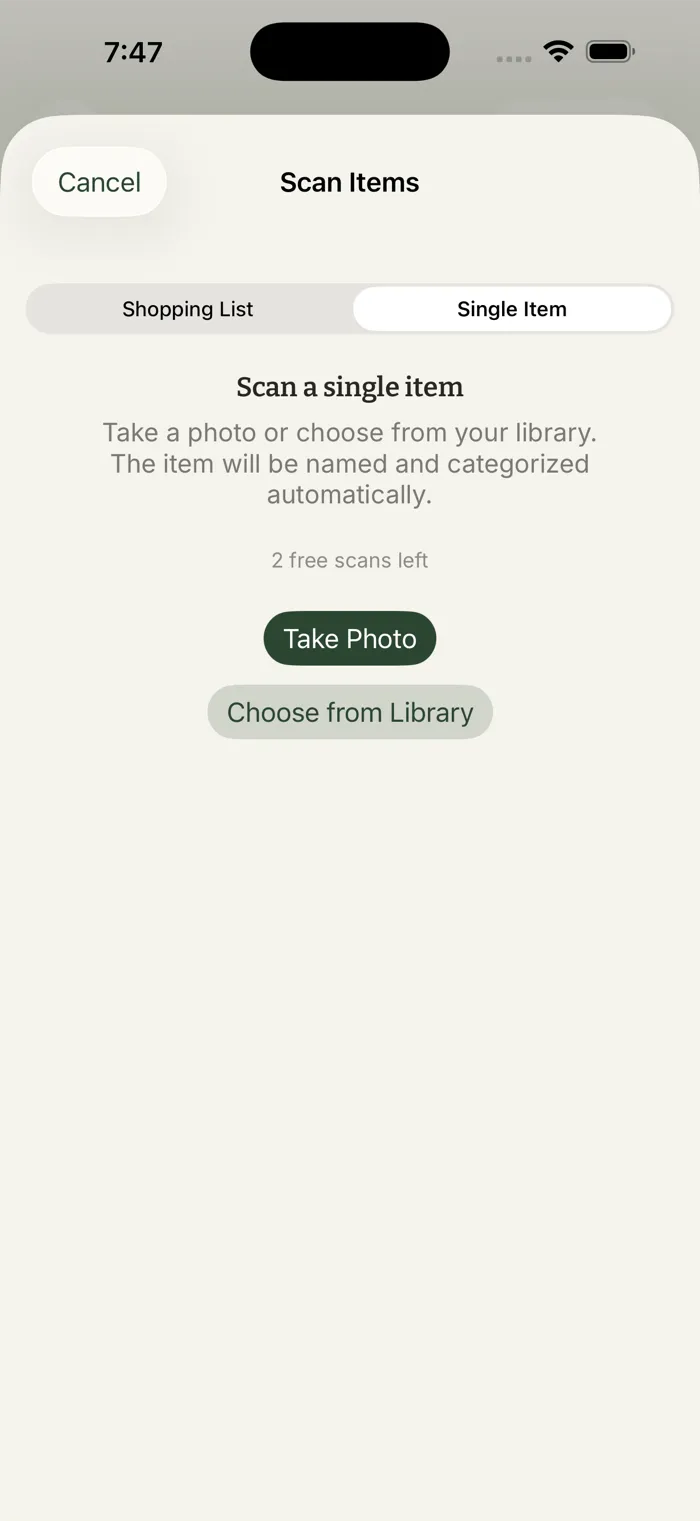
Scout has two AI features: automatic categorization (included on every plan) and photo scanning to bring items or a whole list into the app (Lite and Pro). Everyone gets a handful of free categorization and scanning actions to try it out, and annual Lite and Pro plans include a free trial so you can test scanning before you're billed. One subscription covers your whole household — anyone you've invited gets it too. Photos and text are processed securely by Anthropic's AI — see our iOS Privacy PolicyAndroid Privacy Policy for details.
Can I add items by voice on Android?
Yes — from a Hunt, tap the microphone in Scout's Add Item bar and say the items you want to add. Android's own speech recognizer converts what you say to text on your device (the audio itself is never sent anywhere); the resulting text is then sent to Scout the same way typed text is, to sort it into the right category. It stops listening automatically after a short pause.
Can I use Siri to add items?
Yes — once you've set up a Party and at least one Store, you can add items hands-free by saying any of these to Siri:
- "Hey Siri, add an item with Scavenger"
- "Hey Siri, Scavenger, add an item"
- "Hey Siri, add a grocery item with Scavenger"
Siri will ask what you'd like to add, then which store it's for. The item goes onto that store's active Hunt — if there isn't one yet, Scavenger starts a new one called "Shopping List" automatically. The first time you use Siri with Scavenger, you may see a one-time prompt asking whether you meant Scavenger or another app with a similar feature — just pick Scavenger, and it should go straight there from then on.
Is my data private?
Yes — your lists live in your own iCloud account, not on a Northbaseworks server. See the full Privacy Policy for details.
Is my data private?
Scavenger for Android requires signing in with a Google account, and your lists are stored using Google's cloud infrastructure — scoped to your household, and visible only to members of that household, never across households. Signing in shares your email (used to run your account, never shown to other members) and your display name (shown to your household so people can tell who's who). See the full Android Privacy Policy for the complete picture.
How do I cancel my Scout subscription?
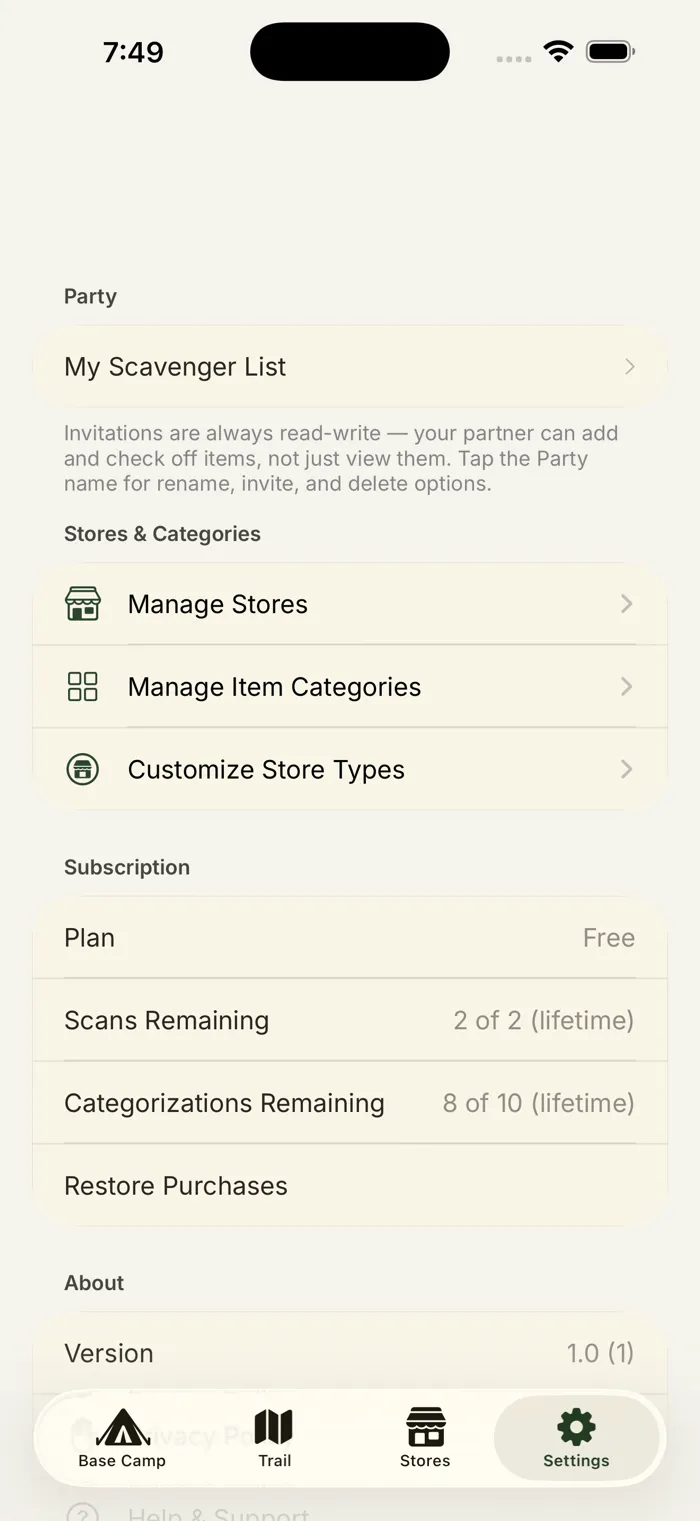
In the app, go to Settings, tap your Party name, and choose Manage Subscription — this takes you straight to Apple's subscription management page, where you can cancel anytime. You can also get there directly: on your device, go to Settings → [Your Name] → Subscriptions, select Scavenger, and choose Cancel Subscription.
How do I cancel my Scout subscription?
Subscriptions on Android are sold and managed entirely through Google Play. In the app, go to Settings, tap your Party name, and choose Manage Subscription — this sends you straight to the Google Play Store's subscription settings, where you can cancel anytime. You can also get there directly through the Play Store app's own Subscriptions section. Cancelling stops future renewals; you keep access through the end of the period you already paid for.
I found a bug. How do I report it?
The fastest way is the Report a Problem button in the app's Settings tab — it automatically includes your app version, device info, and recent activity logs to help us track down the issue quickly, no typing required. Don't have the app handy, or it's more of a general question? Use the form at the top of this page.
I found a bug. How do I report it?
In the app, go to Settings and tap Report a Problem — describe what happened, and your plan tier is attached automatically to help us track it down. Don't have the app handy, or it's more of a general question? Use the form at the top of this page.
I need iCloud signed in — why?
Scavenger uses iCloud to sync your list and share it with your household, so an iCloud account is required to use the app. If you see a prompt asking you to sign in, open your device's Settings, tap your name at the top, and sign in to (or turn on) iCloud, then return to Scavenger.
Why do I need to sign in with Google?
Scavenger for Android uses your Google account to sync your list and share it with your household, so signing in is required to use the app — there's no guest, anonymous, or offline mode. If you're prompted to sign in, tap Sign in with Google and choose the account you'd like to use.
Does Scavenger delete old data automatically?
Yes, in two specific cases, so your account doesn't accumulate shopping history forever:
- A finished shopping trip is deleted automatically 90 days after you archive it.
- A household with no activity for 12 months — no one opens it, adds anything, or checks anything off — is deleted automatically, along with its lists, stores, and trip history.
Both of these happen on their own; there's nothing to turn on or manage. If you'd like your account or a household's data gone sooner than that, or have a question about how this works, visit our account deletion page.